Add an Intercom-style help widget to your website. Users can browse your guides without leaving your site.
Pro feature
Widgets are available on Pro and Team plans.
What is a widget?
A widget is a floating help button that appears on your website. When clicked, it opens a panel with your guides, letting visitors get help without leaving the page.
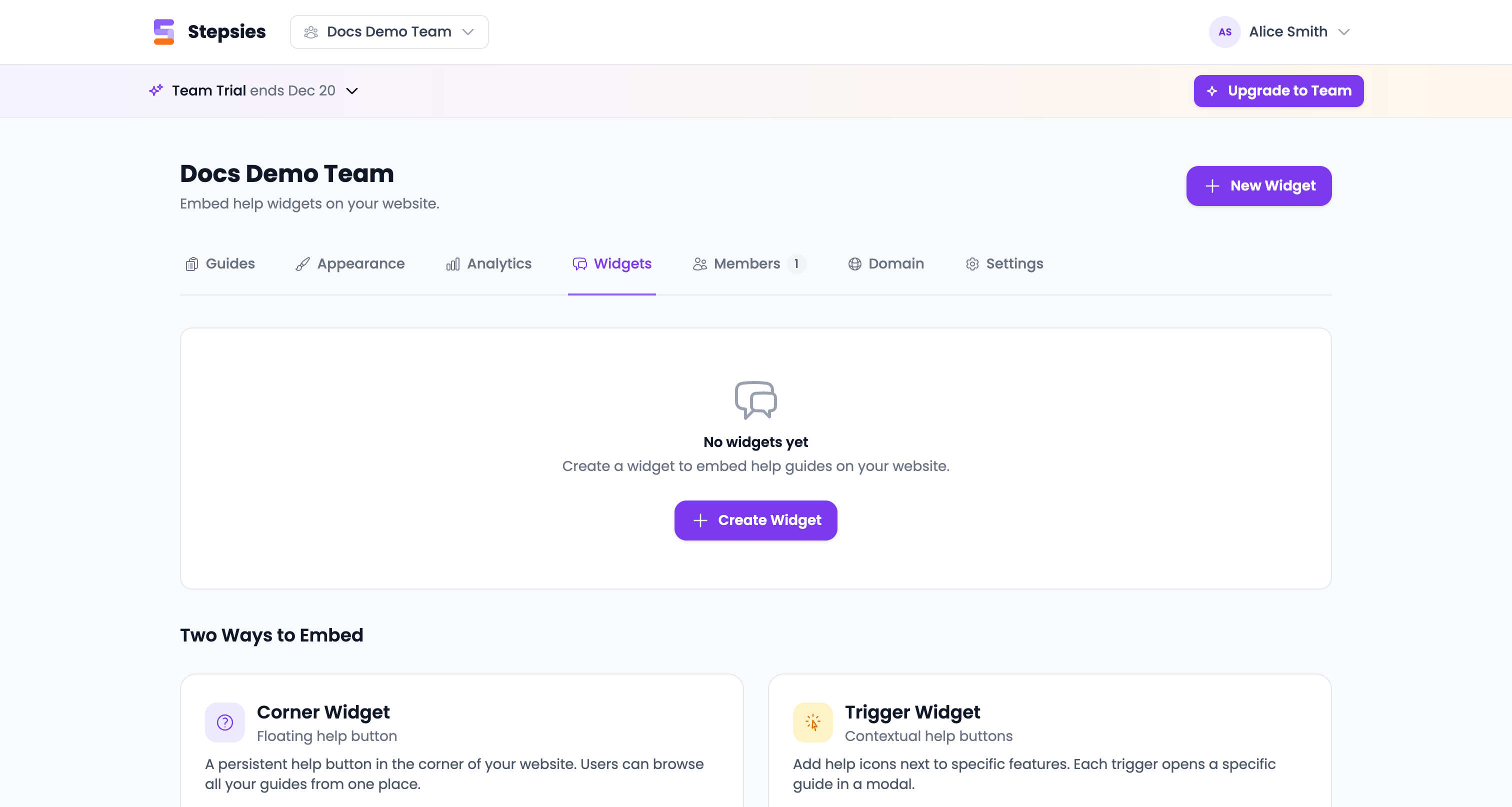
Creating a widget
- Go to Dashboard > Widgets
- Click New Widget
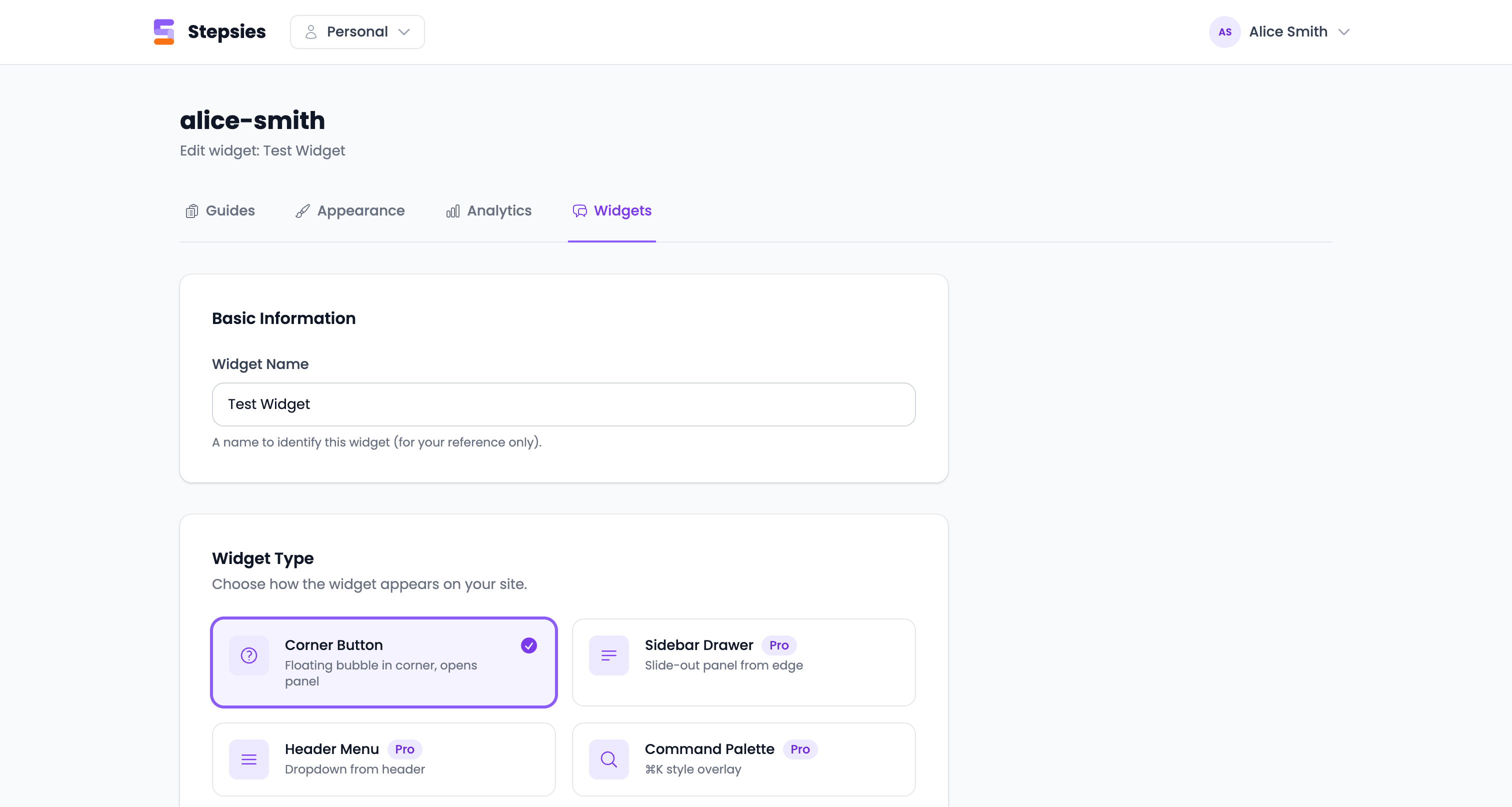
Configure the widget:
- Name — Internal name for identification
- Widget Type — Choose Corner Button, Sidebar Drawer, or other styles
- Greeting — Text shown in the widget header (e.g., “Need help?”)
- Position — Bottom-right or bottom-left
- Color — Match your brand
- Icon — Choose from help, book, chat, question, or lightbulb
Select which guides to include
Save and copy the embed code
Adding to your website
Paste the embed code in your website’s HTML, just before the closing </body> tag:
<script
  src="https://cdn.stepsies.com/widget.js"
  data-config="YOUR_CONFIG_ID"
  async></script>
The widget loads asynchronously from our CDN and won’t slow down your page.
Domain restrictions
For security, you can restrict which domains can load your widget:
- Edit your widget
- Under Allowed Domains, enter one domain per line:
example.com— Exact match*.example.com— Matches subdomains (app.example.com, help.example.com)
Leave empty to allow any domain.
Trigger links
You can also open guides from buttons or links anywhere on your page:
<button data-stepsies-trigger="getting-started">Need help?</button>
The data-stepsies-trigger attribute should match the guide’s slug (from the URL). When clicked, the guide opens in a modal.
How it displays
| Context | Behavior |
|---|---|
| Desktop | Floating button opens a slide-out panel (400px wide) |
| Mobile | Floating button opens a full-screen modal |
| Trigger link | Opens guide in a centered modal overlay |
Analytics
Widgets track:
- Widget opens — How often users click the help button
- Guide views — Which guides users view
- Top domains — Where your widget is active
View analytics by clicking the chart icon next to your widget.
Disabling analytics
Add data-analytics="false" to opt out of tracking:
<script
  src="https://cdn.stepsies.com/widget.js"
  data-config="YOUR_CONFIG_ID"
  data-analytics="false"
  async></script>
Best practices
- Keep it focused — Include only relevant guides for each widget
- Use domain restrictions — Prevent unauthorized use
- Match your brand — Choose colors that fit your site
- Test on mobile — Make sure the widget works well on phones
- Consider placement — Bottom-right works best for most sites
Troubleshooting
Widget doesn’t appear? - Check that the script is loaded (browser console > Network tab) - Verify the config ID matches your widget - Check domain restrictions if applicable
Wrong guides showing? - Make sure guides are published - Check that guides are added to the widget
Conflicts with other widgets?
- The Stepsies widget uses z-index: 9999
- Adjust other elements if needed