Serve your guides from your own branded domain like guides.yourcompany.com.
Team feature
Custom domains are available on Team plans only.
Why use a custom domain?
A custom domain lets your guides live on your brand:
- Professional appearance —
guides.yourcompany.cominstead ofstepsies.com/@yourcompany - Brand consistency — Keep users within your domain ecosystem
- SEO benefits — Build authority on your own domain
Setting up a custom domain
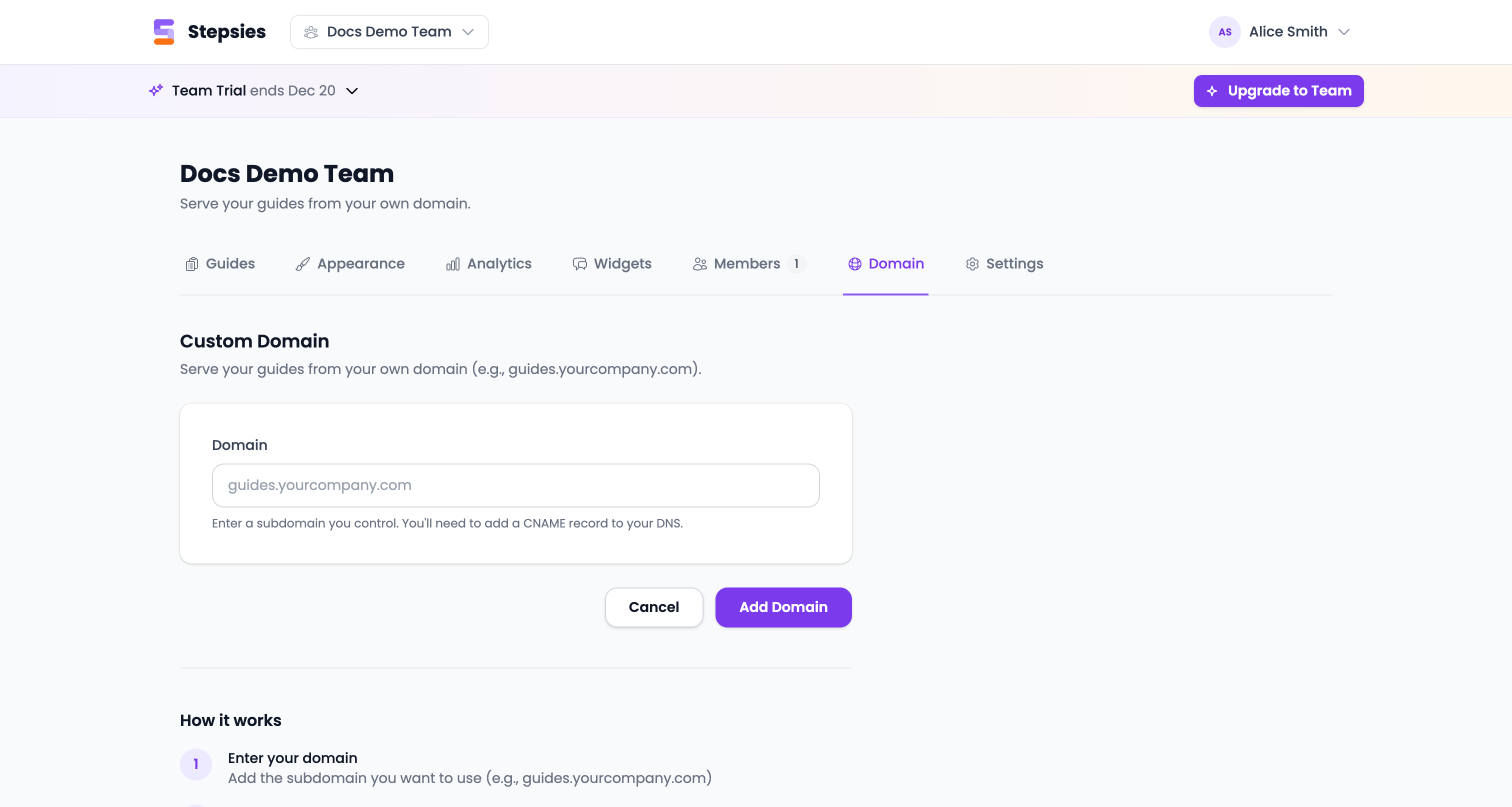
Step 1: Add your domain in Stepsies
- Go to Dashboard > Domain tab
- Enter your subdomain (e.g.,
guides.yourcompany.com) - Click Add Domain
Step 2: Configure DNS
Add a CNAME record at your DNS provider:
| Type | Name | Target |
|---|---|---|
| CNAME | guides | customers.stepsies.com |
Note: The “Name” field should be just the subdomain part (e.g., guides not guides.yourcompany.com). Your DNS provider will automatically append your domain.
Step 3: Wait for verification
After adding the DNS record:
- DNS changes can take up to 24 hours to propagate
- Stepsies will automatically verify your domain
- Once verified, SSL is provisioned automatically
- Your domain status will change to Active
Domain statuses
| Status | Meaning |
|---|---|
| Pending Verification | Waiting for DNS to propagate |
| SSL Provisioning | DNS verified, setting up HTTPS |
| Active | Your domain is live and ready |
| Error | Something went wrong (check DNS settings) |
DNS provider guides
Here’s how to add a CNAME record with common DNS providers:
Cloudflare
- Go to your domain’s DNS settings
- Click Add record
- Select CNAME as the type
- Enter
guidesas the name - Enter
customers.stepsies.comas the target - Click Save
GoDaddy
- Go to My Products > DNS
- Click Add under Records
- Select CNAME as the type
- Enter
guidesas the host - Enter
customers.stepsies.comas the value - Click Save
Namecheap
- Go to Domain List > Manage
- Click Advanced DNS
- Click Add New Record
- Select CNAME Record
- Enter
guidesas the host - Enter
customers.stepsies.comas the value - Click the checkmark to save
Troubleshooting
Domain stuck on “Pending Verification”
- DNS not propagated yet — Wait up to 24 hours
- Wrong CNAME target — Ensure it points to
customers.stepsies.com - Proxy enabled — If using Cloudflare, try disabling the proxy (orange cloud)
SSL certificate issues
SSL certificates are provisioned automatically. If there’s an issue:
- Verify your DNS record is correct
- Click the refresh button to re-check
- Contact support if the issue persists
Can I use a root domain?
No, custom domains must be subdomains (e.g., guides.yourcompany.com). Root domains (yourcompany.com) are not supported because they cannot use CNAME records reliably.
Removing a custom domain
To remove your custom domain:
- Go to Dashboard > Domain
- Click the trash icon
- Confirm removal
Your guides will return to the default stepsies.com/@yourworkspace URL.